



















.svg.png?height=48&name=Zoho_CRM_(application).svg.png)







A payment tracker template is a ready-made spreadsheet with one row for each invoice you send, showing when it is due, how much has been paid, and what is still owed. Chaser's free payment tracker template works in Google Sheets and Excel. It tracks invoice numbers, due dates, days past due, amounts, late fees, payments received, and outstanding balances, with the formulas and totals already built in.
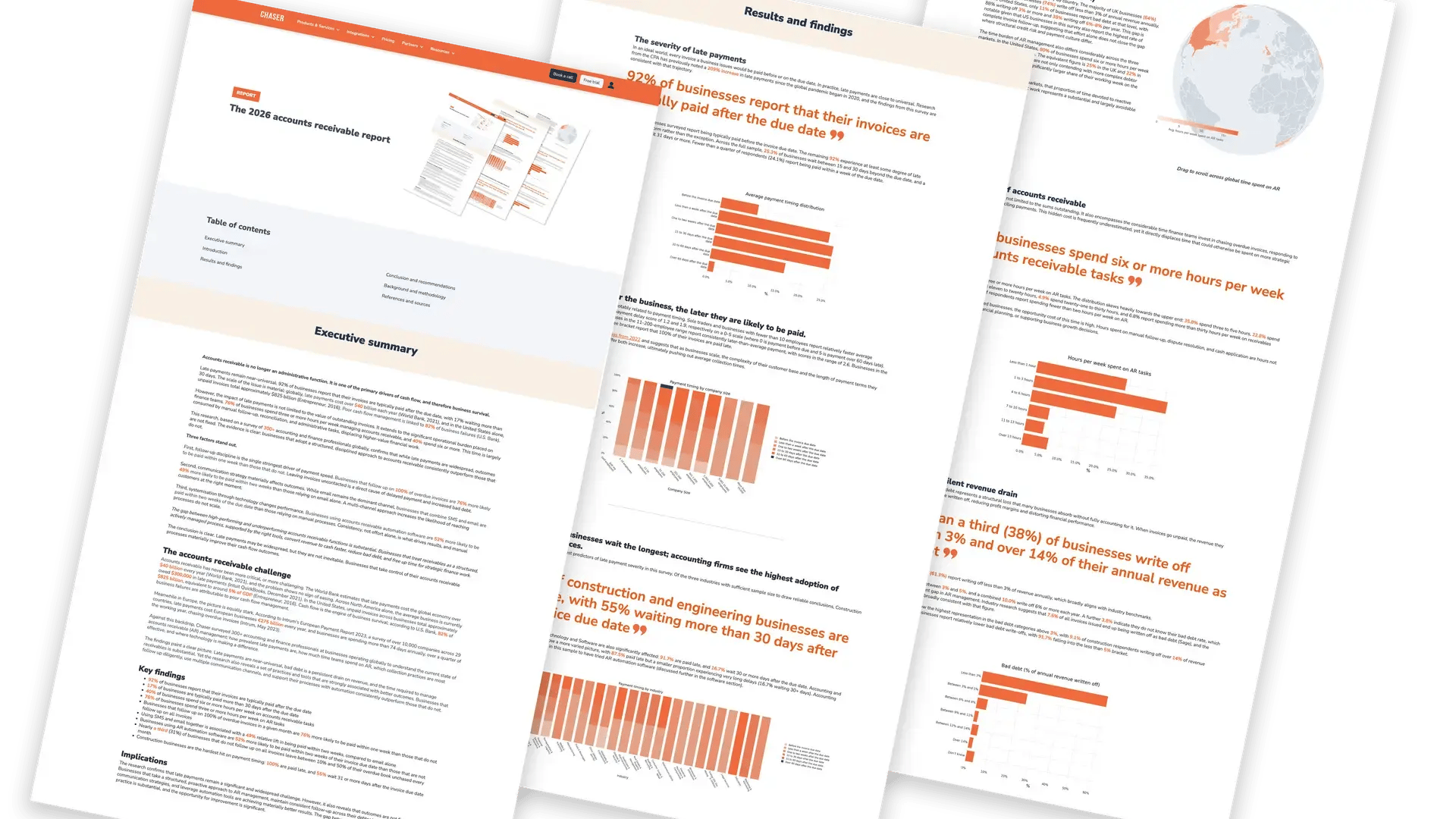
Keeping that record matters because late payment is normal, not rare. In Chaser's 2026 accounts receivable report, 92% of businesses said their invoices are typically paid after the due date, and 17% wait more than 30 days. In the US, a January 2025 QuickBooks survey found that 56% of small businesses were owed money from unpaid invoices, averaging $17,500 USD per business, according to the 2025 Intuit QuickBooks Small Business Late Payments Report.
This guide shows you what the template tracks, how to set it up in a few minutes, the formulas to build or extend your own, and how to tell when a spreadsheet is no longer enough.
What is a payment tracker template?
A payment tracker template is a spreadsheet that is already set up to record your invoices and the payments you receive against them. Instead of designing columns and writing formulas yourself, you open the file, add a row for each invoice, and let the formulas keep the balance, days overdue, and totals up to date.
You will also see it called an invoice tracker, a customer payment tracker, or a client payment tracker. The names overlap. An invoice tracker starts from the invoices you send, and a payment tracker starts from the money coming in, but many small business templates, including Chaser's, do both on the same row. If you want a wider set of receivables spreadsheets, such as an aging schedule or a customer ledger, see these free accounts receivable templates.
Download the free payment tracker template
The Chaser payment tracker is a Google Sheet. When you fill in a short form with your name, business email, and the accounting software you use, you go straight to a page with the link to the template. It opens in view-only mode, so you make your own copy to start using it:
- In Google Sheets: click File, then Make a copy, and save it to your own Google Drive.
- In Excel: click File, then Download, then Microsoft Excel. Open the .xlsx file in Excel. The formulas and the balance highlighting come across with it.
Google explains both steps in its guide to copying and downloading a file. The template has two tabs: a short "How to use this sheet" tab, and the Invoice Tracker itself.
Get the free payment tracker template
A ready-made invoice and payment tracker with the formulas already in place. Works in Google Sheets and Excel.
Download your free templateWhat columns does the payment tracker include?
The Invoice Tracker tab has ten columns, grouped under Customer Information and Payments. Eight are for you to fill in and two are calculated for you. The table below lists every column in the order it appears.
| Column in the template | What it records | Filled in by |
|---|---|---|
| Invoice # | The invoice number, so you and your customer can find the invoice quickly. | You |
| Date | The date you issued the invoice. The sample rows show today's date, so type your real invoice date over it. | You |
| Payment Due Date | The date the customer should pay by, based on your payment terms. | You |
| Days past due date | How many days have passed since the due date. | Formula |
| Customer Name | Who the invoice was sent to, so you can sort or filter by customer. | You |
| Total Amount Due | The value of the invoice. | You |
| Late Fee | Any late payment fee you have added to the invoice. | You |
| Total Paid | How much the customer has paid so far. | You |
| Date Paid | The date the payment arrived. | You |
| Outstanding / Balance Due | Total amount due, minus total paid, plus any late fee. | Formula |
Below the invoice rows, a totals row adds up the total amount due, late fees, total paid, and outstanding balance, and shows the average days past due across your invoices. Any late fee or outstanding balance above zero is highlighted, so unpaid amounts stand out when you scan the sheet.
Two columns are worth adding if you need them: a payment method column to help when you match payments to your bank statement, and a notes column for promises to pay, disputes, or partial payment arrangements.
How to use the free template, step by step
Setting up the template takes a few minutes. Follow these steps in order.
Step 1: Make your own copy
Open the template and make a copy in Google Sheets, or download it as an Excel file. Work only in your copy. Rename it with your business name so it is easy to find later.
Step 2: Replace the sample rows
The template comes with six sample invoices, numbered 100 to 105, with placeholder customers and amounts. Type your own invoices over them rather than deleting the rows, so the formulas in the days past due and balance columns stay in place.
Step 3: Set your currency
The sample amounts are formatted in pounds, and the lower totals row uses dollars. Select the amount columns and both totals rows, then set the number format to your own currency so every figure matches.
Step 4: Enter each invoice the day you send it
Fill in the invoice number, the invoice date, the payment due date, the customer name, and the total amount due. The Date column in the sample rows uses a formula that always shows today's date, so type the real invoice date over it. Add a late fee only if your terms allow one. This guide to charging late payment fees explains when you can.
Step 5: Record payments as they arrive
When a customer pays, enter the amount in Total Paid and the date in Date Paid. The balance updates on its own. A part payment leaves the remaining amount showing, and a full payment takes the balance to zero.
Step 6: Add rows as you grow
When you need more rows, insert them above the last invoice row, not below it, then copy the formulas down from the row above. Rows inserted inside the table are picked up by the totals. Rows added under the totals are not.
Step 7: Review the tracker every week
Sort by days past due to see your oldest unpaid invoices first, then follow up on each one. A ready-made payment reminder email template saves you writing every message from scratch, and a statement of account helps when one customer has several invoices open.
One tip for the template: the days past due formula keeps counting after an invoice is paid. To show zero for paid invoices, replace the formula in the first days past due cell with =IF(K4<=0,0,MAX(0,TODAY()-D4)) and copy it down. It reads the balance in column K and only counts days while money is still owed.
How to build your own payment tracker in Excel or Google Sheets
If you would rather build your own, or want to add a status column to the template, use the layout below. It works the same way in Excel and Google Sheets. Put your headers in row 1, your first invoice in row 2, and copy each formula down the column.
| Column | Header | What goes in it | Formula for row 2 |
|---|---|---|---|
| A | Invoice number | Your invoice reference | Typed |
| B | Customer | Customer or client name | Typed |
| C | Invoice date | Date the invoice was issued | Typed |
| D | Due date | Invoice date plus your payment terms | =C2+30 for 30-day terms |
| E | Amount | Invoice value | Typed |
| F | Late fee | Any fee you have added | Typed, or 0 |
| G | Amount paid | Total received so far | Typed |
| H | Date paid | Date of the latest payment | Typed |
| I | Balance | What is still owed | =E2+F2-G2 |
| J | Days overdue | Days past the due date, 0 once paid | =IF(I2<=0,0,MAX(0,TODAY()-D2)) |
| K | Status | Paid, Due, or Overdue | =IF(I2<=0,"Paid",IF(TODAY()>D2,"Overdue","Due")) |
The TODAY function returns the current date, and Excel updates it whenever the workbook recalculates, as Microsoft's TODAY function guide explains. That is what keeps the days overdue and status columns current without you touching them. The IF function returns one result when a test is true and another when it is false, which is how the status column chooses between Paid, Due, and Overdue. Excel can switch a cell to a date format when you use TODAY, so if the days overdue column shows a date instead of a number, change that column's format to Number.
Add totals and customer summaries
A few summary formulas turn the tracker into a quick report. Adjust the ranges to match the number of rows you use.
- Total outstanding:
=SUM(I2:I500) - Outstanding for one customer:
=SUMIF(B2:B500,"Oakwood Ltd",I2:I500), using Microsoft's SUMIF function - Number of overdue invoices:
=COUNTIF(K2:K500,"Overdue") - Average days overdue, late invoices only:
=AVERAGEIF(J2:J500,">0"), using the AVERAGEIF function
To group unpaid invoices by age, add an aging column with =IF(I2<=0,"Paid",IF(J2=0,"Current",IF(J2<=30,"1-30 days",IF(J2<=60,"31-60 days",IF(J2<=90,"61-90 days","90+ days"))))). That gives you the same buckets as an accounts receivable aging report, and shows you where to focus your follow-up.
Color overdue rows automatically
Select your invoice rows, then add a conditional formatting rule based on a formula. In Excel, go to Home, then Conditional Formatting, then New Rule, and choose "Use a formula to determine which cells to format". In Google Sheets, go to Format, then Conditional formatting, and choose "Custom formula is". Enter =$K2="Overdue" and pick a red fill. Add a second rule with =$K2="Due" and an amber fill to flag invoices coming up. Microsoft's guide to conditional formatting in Excel and Google's guide to conditional formatting rules in Sheets walk through each screen.
Excel vs Google Sheets: which should you use?
Both work well for a payment tracker, and the formulas in this guide run in either one. The choice comes down to how your team works. The table compares them with dedicated accounts receivable software, which is the next step once a spreadsheet stops keeping up.
| Excel | Google Sheets | Accounts receivable software | |
|---|---|---|---|
| Best for | Working offline, or teams that already run on Microsoft 365 | Several people updating one tracker in a browser | Teams chasing more invoices than they can keep up with by hand |
| Sharing | Through OneDrive or SharePoint | Share a link and edit together in real time | Team access, with each customer's chasing history in one place |
| Updates when a customer pays | No, you type it in | No, you type it in | Yes, it syncs with your accounting system |
| Sends reminders | No | No | Yes, on a schedule you set |
| Works with the Chaser template | Yes, download as .xlsx | Yes, make a copy | Replaces it |
Choose Google Sheets if more than one person updates the tracker, because everyone sees the same version in real time. Choose Excel if your business already runs on Microsoft 365 or you need to work offline. Either way, keep one master copy, so nobody chases a customer who has already paid.
When does a payment tracker spreadsheet stop being enough?
A spreadsheet can show you that an invoice is overdue, but it cannot do anything about it. Every reminder, every payment update, and every "has this been paid?" check still depends on someone doing it by hand. That work adds up. In Chaser's 2026 research, 40% of businesses spend six or more hours a week on accounts receivable tasks, and in the US that figure is 80%.
Consistent follow-up makes a measurable difference. The same report found that businesses that follow up on every overdue invoice are 76% more likely to be paid within one week than those that do not, yet 31% of businesses leave some overdue invoices unchased each month.
Signs you have outgrown the spreadsheet:
- Updating the tracker takes hours every week, and it is still out of date by Friday.
- You find invoices that were never chased, or customers who were chased after they paid.
- Two people keep separate copies, and the balances do not match.
- You need to know what cash is coming in next month, not just what is overdue today.
At that point, accounts receivable automation software takes over the parts a spreadsheet cannot do. Chaser connects to accounting systems such as Xero, QuickBooks, and Sage, so a paid invoice updates on its own and drops out of your chasing. It sends email and SMS payment reminders on a schedule you set, gives customers a payment portal to pay online, and forecasts your cash flow from real invoice data. Chaser's research found that businesses using accounts receivable automation software are 52% more likely to be paid within two weeks of the due date than those relying on manual processes. Plans are published by region and set by annual revenue, as shown on the Chaser pricing page.
FAQs
What is a payment tracker?
A payment tracker is a spreadsheet or tool that records every invoice you send and every payment you receive against it, so you can see at a glance what is paid, what is still outstanding, and which invoices are overdue. Most small businesses start with a payment tracker template in Excel or Google Sheets.
Is the Chaser payment tracker template free?
Yes. The template is free. You fill in a short form, and you are taken straight to a page with the link to the template. It is a Google Sheet, so you make your own copy in Google Drive or download it as an Excel file.
Can I use the payment tracker template in Excel?
Yes. Open the template, click File, then Download, then Microsoft Excel. You get an .xlsx file that keeps the formulas for days past due, balance, and totals, plus the highlighting on outstanding balances, so it works in Excel the same way it works in Google Sheets.
How do I create a payment tracker in Excel?
Put one invoice on each row, with columns for invoice number, customer, invoice date, due date, amount, late fee, amount paid, date paid, balance, days overdue, and status. Use formulas to work out the balance, days overdue, and status, then add conditional formatting so overdue rows change color. The step-by-step build in this guide gives every formula.
How do I create an invoice tracker in Google Sheets?
Create the same columns you would in Excel: invoice number, customer, dates, amount, amount paid, and balance. Google Sheets supports the same TODAY, IF, SUMIF, and AVERAGEIF formulas, and you add color rules under Format, then Conditional formatting, using the "Custom formula is" option. The quickest start is to copy a ready-made invoice tracker template.
How do I keep track of payments received?
Record each payment on the row of the invoice it pays, with the amount received and the date it arrived. A good tracker then updates the balance on its own, so a fully paid invoice drops to zero and a part payment leaves the remaining amount showing. Review the tracker weekly and match it against your bank statement.
What is the difference between a payment tracker and an invoice tracker?
An invoice tracker lists the invoices you have issued and their status. A payment tracker focuses on the money coming in against those invoices. In practice many small business templates do both in one sheet, and the Chaser template records the invoice, what has been paid, and the balance still owed on the same row.
When should I switch from a spreadsheet to accounts receivable software?
Switch when keeping the spreadsheet up to date takes hours each week, when invoices slip through without a follow-up, or when several people need to work from the same numbers. Accounts receivable software connects to your accounting system, so payments update automatically and reminders go out on schedule without anyone copying data by hand.
Outgrown your payment tracker?
Chaser keeps every invoice up to date from your accounting system, chases overdue payments for you in your own voice, and shows you what cash is coming in, so you spend less time on spreadsheets and get paid sooner.
Start your free trial Book a demoSources: Chaser, 2026 accounts receivable report; Intuit QuickBooks, 2025 US Small Business Late Payments Report, based on a January 2025 survey of 2,487 US small businesses; Microsoft Support and Google Docs Editors Help for spreadsheet functions and steps. Template details were checked against the live template on 25 September 2026.
-1.jpg)
.png)