



















.svg.png?height=48&name=Zoho_CRM_(application).svg.png)







In short: QuickBooks Online records your invoices and can send up to three automatic email reminders around each due date, but that is where its accounts receivable automation stops. There are no per-customer schedules, no SMS or letter chasing, no reply tracking, and recurring statements need the Advanced tier. Full credit control means adding a structured layer on top: multi-channel reminders, statements for every customer with a balance, escalation for the invoices that go quiet, and visibility over what is owed. A dedicated platform like Chaser connects to QuickBooks Online in minutes and automates that layer without changing how you invoice. See how 12 accounts receivable platforms compare by business size.
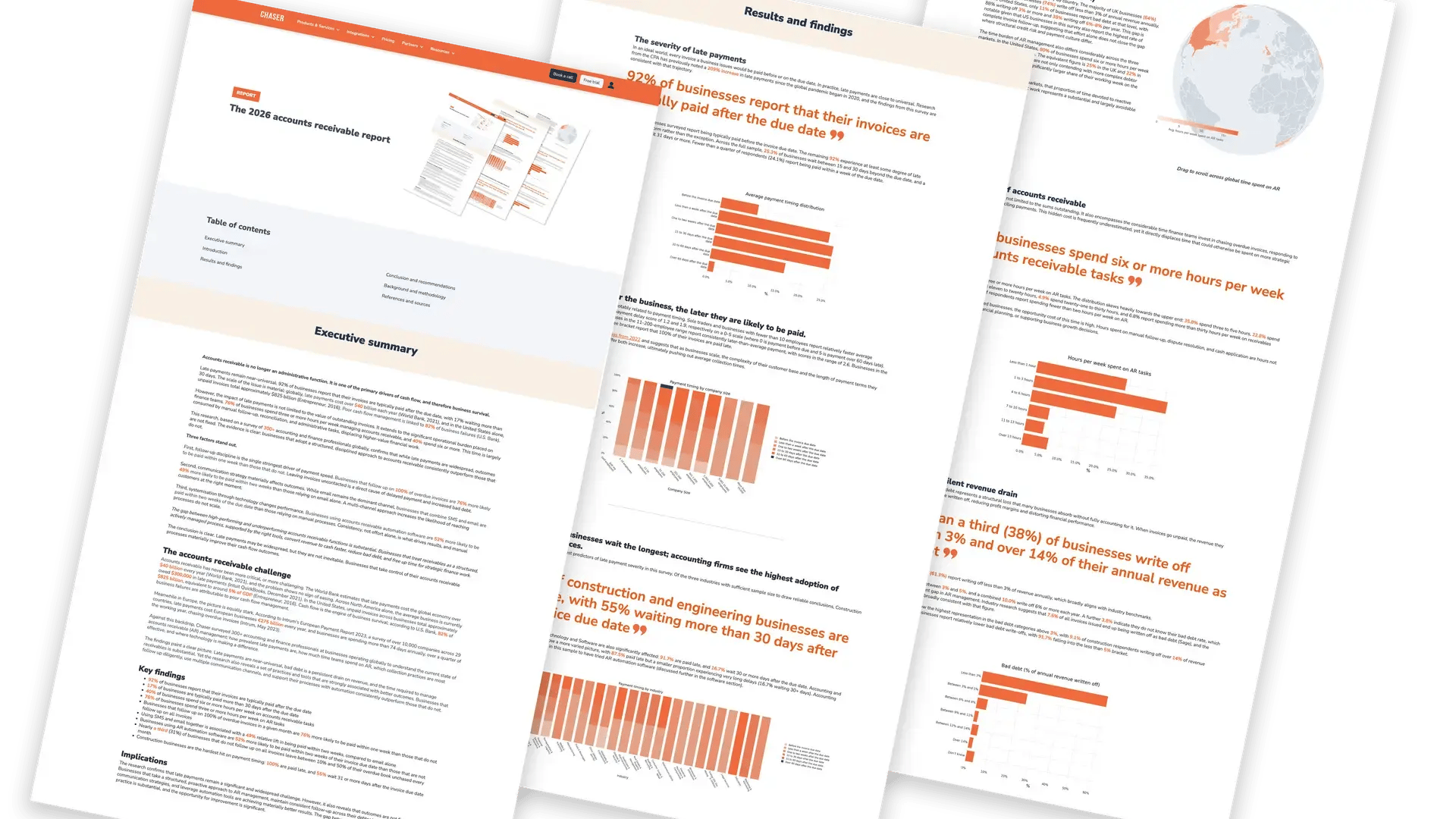
Most finance teams on QuickBooks Online manage receivables the same way: switch on the built-in reminders, run the A/R Aging Summary when cash feels tight, and chase the stragglers by hand. It works at ten customers and quietly stops working at a hundred, because the gaps in the native tooling all get filled by someone's time. According to The 2026 accounts receivable report, 92% of businesses have invoices paid after the due date, and 76% of finance teams spend three or more hours a week on accounts receivable tasks.
This guide covers exactly what QuickBooks Online can do for accounts receivable natively — reminders, statements, payments and reports — where each one stops, and how to automate the rest.
What QuickBooks Online does natively, and the exact limits
QuickBooks Online's automatic invoice reminders live under Settings, then Account and settings, in the Sales tab. Turned on, they will send up to three email reminders per invoice, each scheduled a chosen number of days before or after the due date, within a window of 90 days either side of it. You can edit the subject line, pick a greeting, and rewrite the message body with a small set of variables such as invoice number and company name.
The limits matter as much as the features. The reminder settings are company-wide: there is no documented way to give one customer a different schedule, or to exclude a strategic account from automation while keeping it on for everyone else. Delivery is email only — no SMS, letters or calls. Nothing can be scheduled beyond 90 days overdue, which is precisely when invoices need the most attention. And there is no escalation path: after the third reminder, the system has nothing further to say, however old the invoice gets.
QuickBooks has also started adding AI-suggested wording to reminder emails. Some teams find it useful; others prefer their own tone, and the control to switch off the suggested subject line sits behind a small icon in the email preview. If reminder tone matters to your customer relationships, check what your account is actually sending.
Statements: three formats, and a tier trap
Customer statements are the second native tool, and QuickBooks Online supports three formats: Balance Forward (activity and running balance over a date range), Open Item (unpaid invoices only — the collections format), and Transaction Statement (everything in the period). Generating them is a manual batch job from the customer list.
Scheduling statements to go out automatically needs QuickBooks Online Advanced, where a workflow can send recurring statements monthly. Even then there is a documented gap: the workflow cannot be limited to customers with an open balance, so customers who have paid in full still receive statements — a regular source of confused replies, since most customers read "statement" as "you owe us". Intuit's suggested workaround is to go back to sending them manually.
Signs your QuickBooks credit control has outgrown manual chasing
- The three automatic reminders have been sent, and what happens next depends on somebody remembering.
- You cannot answer "has this customer been chased, and what did they say?" without searching an inbox — QuickBooks does not track replies to reminders.
- Different customers need different handling, but the reminder settings only allow one schedule for everyone.
- Statements go out late, or not at all, because they are a manual batch job someone has to remember.
- Invoices past 90 days have fallen outside the reminder window entirely and sit on the aging report untouched.
- Month-end means exporting the Open Invoices report to Excel to build the chasing list by hand.
None of these are failures of effort. They are what happens when the process outgrows a toolkit designed for simple, standardized reminding.
QuickBooks native AR vs a credit control platform
| Capability | QuickBooks Online native | Chaser connected to QuickBooks |
|---|---|---|
| Reminders | Up to 3 per invoice, within 90 days of the due date | Unlimited schedules with no time cap, tailored per customer group |
| Channels | Email only | Email, SMS, letter and phone |
| Per-customer control | One company-wide schedule; no exclusions | Schedules and tone per customer group; pause individual accounts |
| Statements | Manual batches; recurring needs Advanced and cannot filter to open balances | Scheduled statement runs to customers with a balance |
| Reply tracking | None — replies land in an inbox | Replies, promises to pay and disputes tracked against each invoice |
| Payment insight | Aging reports | AI payer ratings and late-payment prediction |
| Escalation | Manual, outside QuickBooks | Escalate to integrated debt collections without changing systems |
How Chaser connects to QuickBooks Online
The Chaser QuickBooks integration connects in minutes: authorize the connection and your invoices, customers and payments sync automatically, so chasing always runs from the live position and a paid invoice is never chased. Payments recorded through QuickBooks flow straight through, which removes the fear that quietly kills most chasing routines — sending a firm reminder for an invoice that was settled yesterday.
From there, credit control runs on schedules rather than memory: reminders before and after the due date on a cadence you set per customer group, statements to the customers who actually owe money, every reply tracked in one place, and an escalation route into integrated debt collections for the invoices that reminders do not recover. For a comparison of the AR tools that work this way, see the guide to the best AR integrations for QuickBooks.
Reading QuickBooks AR reports for credit control
QuickBooks Online's receivables reports are solid raw material, read properly:
- A/R Aging Summary is the headline view: every customer's balance in 30-day buckets. The 1–30 column is where credit control is won — invoices there almost always respond to a nudge. The 60+ and 90+ columns are an escalation trigger, not a chasing list.
- A/R Aging Detail is the drill-down for investigating a specific customer before a call.
- Open Invoices is the chasing list. Two known quirks: totals often need an export to Excel, and for a year-end view you may need Customize Report → Advanced → "Open Balance – Report Date" for the date range to be respected.
- Collections Report gathers overdue items — but check its filters, as it can include paid invoices depending on configuration, and customer notes cannot be printed on it.
The pattern across all four: the data is there, but turning it into a daily chasing routine means manual exports and cross-referencing. A credit control platform reads the same underlying data continuously, so chasing is triggered by an invoice reaching a stage rather than by someone remembering to run a report.
Setting up credit control on QuickBooks: the process that scales
- Switch on what QuickBooks gives you. Even the three native reminders beat none. Set them before, on, and shortly after the due date, and rewrite the templates in your own tone.
- Segment your customers. Prompt payers, late payers, and high-risk or high-value accounts. This is the step QuickBooks cannot act on natively — it becomes powerful when a platform can run a different cadence per group.
- Go multi-channel. Businesses combining SMS and email reminders are 49% more likely to be paid within two weeks than those using email alone (The 2026 accounts receivable report).
- Send statements monthly — to the customers who owe. The Open Item format is the collections tool; the trick QuickBooks cannot do automatically is limiting the run to open balances.
- Decide escalation in advance. Intuit's own AR guidance sketches the right shape: reminder in the first week, follow-up mid-month, a call at 30 days, formal steps from 45–60. The difference is whether that timeline runs on software or on memory.
- Measure it. Baseline days sales outstanding, the percentage of invoices overdue, and hours spent chasing before you change anything. Chaser's guide to the DSO formula covers the calculation and benchmarks.
The payoff is well evidenced: businesses using accounts receivable automation software are 52% more likely to be paid within two weeks of the due date than those relying on manual processes (The 2026 accounts receivable report). For the wider process around the tooling, see the guide to the credit control process.
See what automated credit control looks like on your own QuickBooks ledger.

FAQs
Does QuickBooks Online send automatic payment reminders?
Yes — up to three automatic email reminders per invoice, scheduled up to 90 days before or after the due date, configured company-wide under Account and settings → Sales → Reminders. There are no per-customer schedules, no other channels, and nothing beyond the third reminder.
Can QuickBooks send statements automatically?
Only on the Advanced tier, via a recurring workflow — and it cannot be limited to customers with an open balance, so customers who have paid still receive statements. On other tiers, statements are a manual batch job from the customer list.
What is the difference between the three QuickBooks statement types?
Balance Forward shows activity and a running balance over a date range; Open Item lists only unpaid invoices, which makes it the collections format; Transaction Statement lists everything in the period regardless of balance. For chasing overdue payment, Open Item is usually the right choice.
Which QuickBooks report shows who owes you money?
The A/R Aging Summary shows every customer's balance in 30-day buckets; Open Invoices lists the individual unpaid invoices; the Collections Report gathers overdue items. Read the 1–30 day column as your chasing list and the 60+ columns as an escalation trigger.
Does QuickBooks track whether customers reply to reminders?
No. Reminder replies go to your email inbox, and there is no in-product record of conversations, promises to pay, or disputes against the invoice. Teams that need that audit trail add a credit control platform that logs every reply centrally.
What happens to invoices more than 90 days overdue in QuickBooks?
Nothing automatic — 90 days after the due date is the edge of the reminder scheduling window, so older invoices sit on the aging report until someone acts. They need escalation rather than more reminders: with Chaser, unresolved invoices can be referred to the integrated debt collections service directly from the platform.
Does credit control software replace QuickBooks?
No. QuickBooks stays your accounting system of record. Credit control software connects to it, reads your invoice and payment data, and automates the chasing, statements and escalation — nothing about how you invoice or reconcile changes.