



















.svg.png?height=48&name=Zoho_CRM_(application).svg.png)







QuickBooks gives you a cash flow forecast out of the box. It works well for money going out, bills, payroll, and subscriptions. The money coming in is where it gets harder, because that depends on when your customers actually pay, and QuickBooks can only go on when the invoice is due.
When the forecast keeps missing, the instinct is to blame your own setup. Usually it is the planner, doing exactly what it was built to do, on a debtor book where late payment is the norm and not the exception.
This guide covers how the Cash Flow Planner works, where Intuit documents its limits, where it breaks for a team managing its own accounts receivable (AR), and how to build a forecast that holds up, step by step, from the data already in your QuickBooks account.
Why the QuickBooks cash flow planner breaks down for AR teams
Four major issues stand out, most of which are documented by Intuit in help articles most finance teams never have a reason to read until the forecast is already wrong.
Planner items aren't real transactions
Intuit's Cash flow Planner documentation states that items you enter into the planner, whether planned income or planned expenses, aren't real transactions. They don't post to your books.
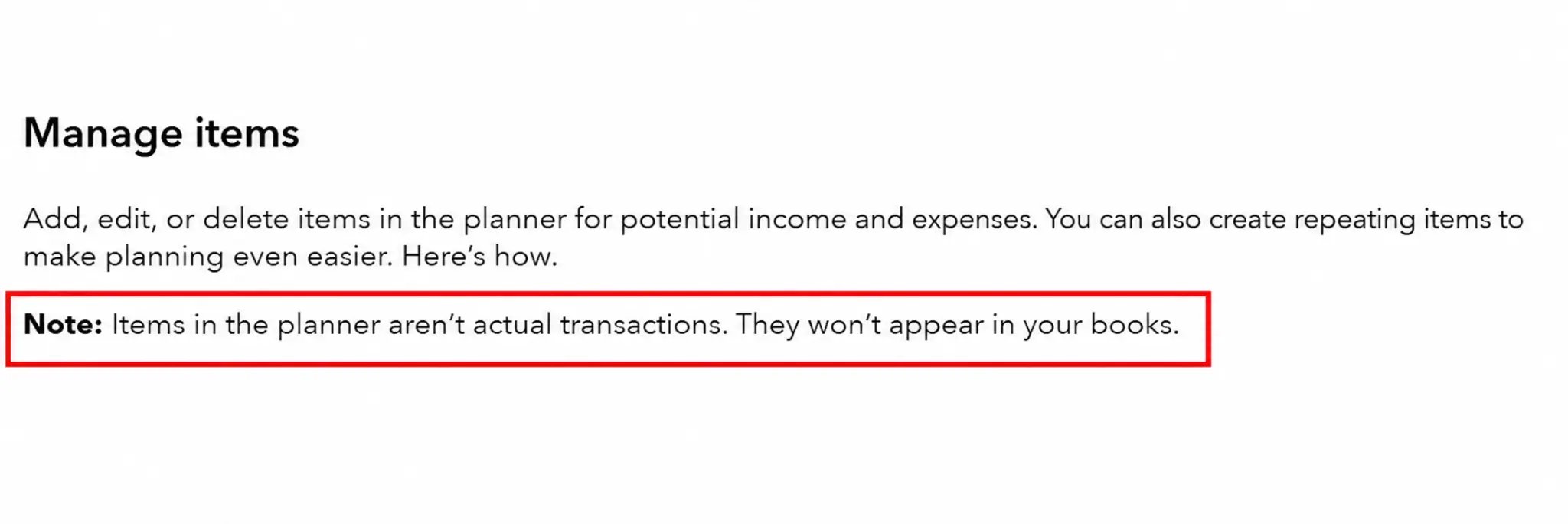
For a team managing its own AR, a planner item representing an expected payment sits apart from the actual invoice it's meant to represent. When the real payment posts, or doesn't, nothing in the planner automatically reconciles the two. The planner's projection and your ledger's reality can quietly drift apart, and nothing inside QuickBooks flags it when they do.
The planner is unavailable once multicurrency is turned on
Intuit’s second hard limit is that the Cash Flow Planner isn't available once Multicurrency is switched on in QuickBooks Online. For an AR team invoicing customers in more than one currency, that means the tool doesn't exist inside QuickBooks at all.
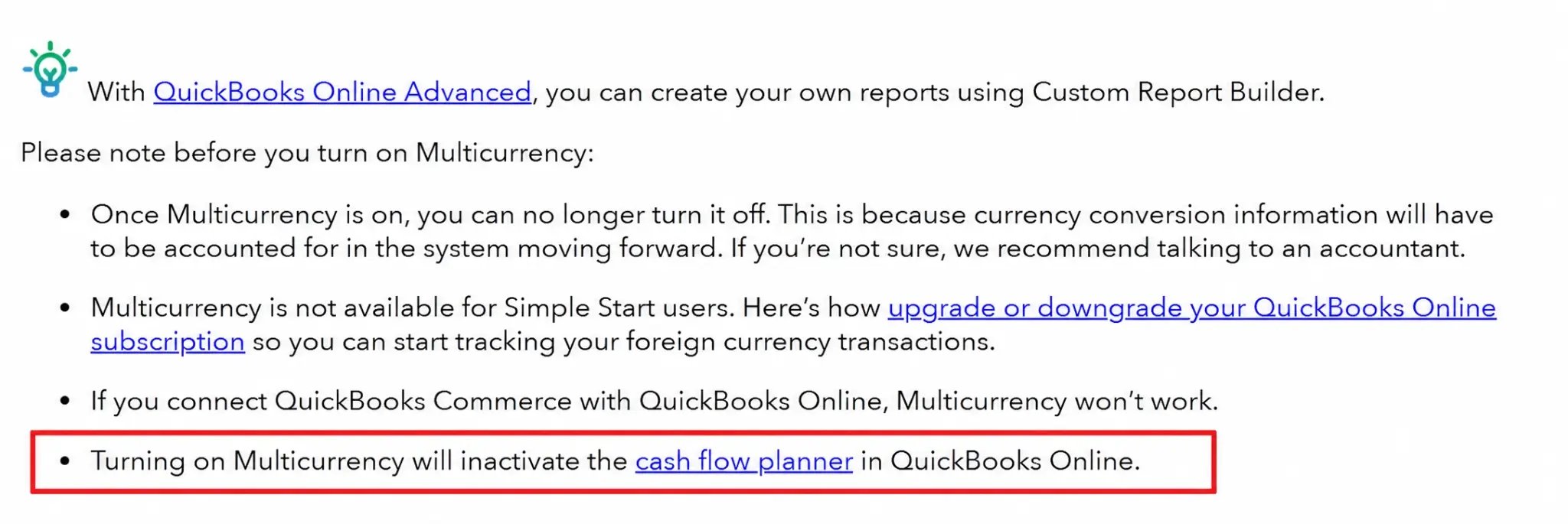
If that's your situation, Chaser's general guide to forecasting cash flow covers a method that doesn't depend on the native planner.
The money-in line assumes invoices are paid on their due date
The planner's money-in line assumes an invoice gets paid on its due date. That assumption fails at scale for mid-market businesses. According to Chaser's 2026 AR report, 92% of businesses report that their invoices are typically paid after the due date, with mid-market businesses hit hardest of all.
A December 2021 QuickBooks study also found mid-sized businesses were owed an average of $304,066 USD in late customer payments. That figure comes from Intuit, surveying its own market, using its definition of mid-sized. A major undercut, considering late payment is the norm Intuit’s own planner quietly ignores.

Re-dating an overdue invoice doesn't fix anything
When one of your invoices goes overdue, the planner flags the transaction and prompts you to enter a new expected date, so it keeps appearing as a future event instead of vanishing from the chart.
That re-dating never changes the invoice's actual due date or touches the receivable at all. The customer still owes the same amount on the same original terms. All that's changed is what the forecast expects to see.
Beyond that, Intuit's guidance is a general prompt to streamline your invoicing process, with no mechanism attached to how. The native fix for a late payer is to manually adjust what the forecast expects rather than do anything about the invoice that's actually late. That's the gap the rest of this guide addresses.
How to build a more accurate Quickbooks cash flow forecast in 5 steps
The five steps below use nothing beyond the reports and data already sitting in a standard QuickBooks account.
Step 1: Set the forecast horizon and confirm your data sources
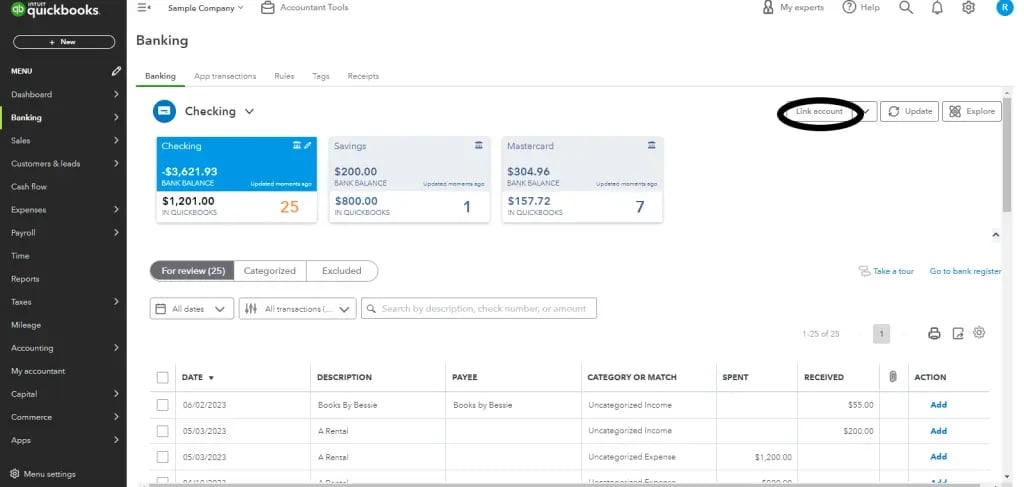
Before adjusting anything, confirm what the planner is actually drawing from. Check which bank and credit accounts are connected, since the planner only reads what's linked. Review what recurring transactions and planned items are already sitting in there (some may be stale entries from months ago that no longer reflect). Confirm the forecast horizon you've set, weeks or months out, since that changes how much the due-date assumption compounds before you notice it's wrong.
Because the planner items don't post as real transactions and the tool is incompatible with Multicurrency, give anything entered manually a fresh look rather than assuming it's still accurate, and confirm the tool isn't blocking your access before troubleshooting anything else.
Getting this baseline right matters because every adjustment in the steps that follow builds on it. Correct a due-date assumption on top of an already-wrong baseline, and the error compounds instead of closing.
Step 2: Find every invoice that's already overdue
Pull your AR aging report, a standard report native to QuickBooks Online, and read off every invoice currently past its due date.
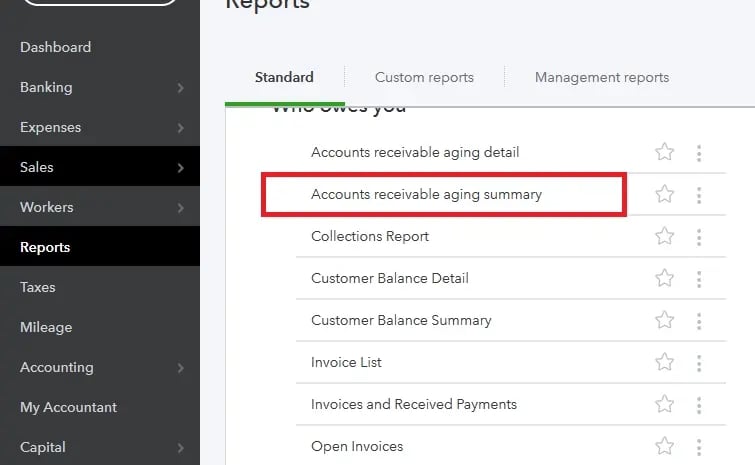
This diagnostic step converts a vague sense that some invoices are late into a specific, named list you can check the forecast against today. If the planner shows $84,000 USD landing this week and the aging report shows $30,000 USD of that sitting in the 30-plus-days-overdue column, the forecast is already wrong before a single date gets adjusted.
Days Sales Outstanding (DSO) is a useful benchmark here too, and it doesn't require new software to calculate: AR balance divided by total credit sales, multiplied by the number of days in the period, using figures already sitting in standard QuickBooks reports. A business with $100,000 USD in receivables and $1,200,000 USD in annual credit sales gets a DSO of ($100,000 ÷ $1,200,000) × 365, or roughly 30 days. If actual DSO consistently runs past stated payment terms, that's the clearest sign the planner's due-date assumption doesn't hold for the business.
Step 3: Reconstruct each flagged customer's real payment pattern, since QuickBooks won't
QuickBooks Online doesn't generate a report showing how long a given customer typically takes to pay. An Average Days to Pay report exists in QuickBooks Desktop, but Intuit has never brought it to Online.
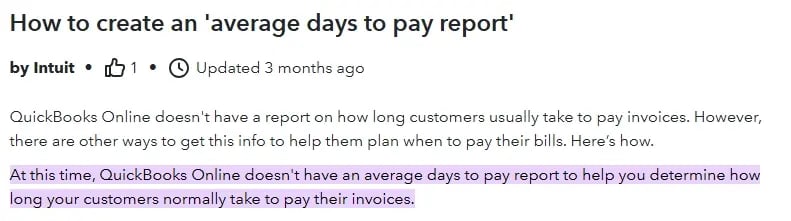
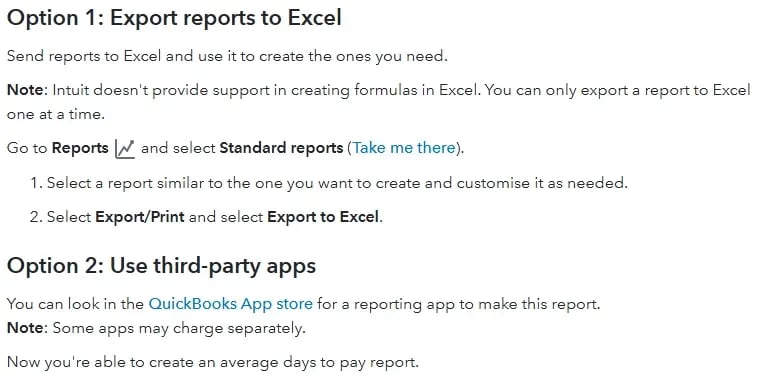
The manual route Intuit itself points users toward is to export a transaction-level report, such as Invoices and Received Payments or Transaction List by Customer, then match each invoice's due date against its actual payment date, account by account, to calculate a real average days-to-pay. Report names and navigation paths shift as Intuit reorganizes its reporting menus, so confirm the current path before starting.
However, partial payments and single payments that settle several invoices at once make this matching genuinely hard to do cleanly by hand. A customer who pays three invoices with one bank transfer forces a judgment call about which invoice the payment actually settled, and that judgment call multiplies across every account with the same habit.
That's why most finance teams limit this reconstruction to their highest-risk or highest-value accounts, the customers whose late payment actually moves the forecast, rather than attempting it across the entire debtor book. Trying to reconstruct every account tends to burn a week on detail that only ten customers actually justified.
Step 4: Use the reconstructed pattern to correct the forecast, not the invoice
Take the average days-to-pay built in Step 3, and use it to set the expected date for each flagged invoice or customer.
For a debtor book of manageable size, or for the highest-risk accounts identified above, this deliberate invoice-by-invoice or customer-by-customer correction beats a system-wide recalculation run once and forgotten. A customer whose real average is 22 days past terms gets an expected date 22 days out, and that new date carries forward into every future invoice from the same customer until it's reviewed again.
This step corrects the forecast's assumption, but it doesn't change the customer's behavior or bring the payment in any faster. A more honest forecast and a faster-paid invoice are two different problems, and only one of them is solved by adjusting a date.
Step 5: Decide how often to redo this, and hold to it
Both the reconstruction in Step 3 and the correction in Step 4 go stale the moment a new invoice posts or a customer's pattern shifts. A forecast fixed once in January is quietly wrong again by March.
The two standing rules needed here are how often the reconstructed payment pattern gets refreshed for the accounts being tracked and how often the forecast itself gets reviewed against what actually landed in the bank.
For most B2B debtor books, that second review should happen weekly, not monthly. The 2026 AR report found that chasing 100% of overdue invoices makes a business 76% more likely to be paid within a week. A month is long enough for three or four invoices to quietly slip past their expected dates before anyone notices.

The cadence of forecast review and the cadence of collections activity are the same problem wearing two hats, and treating them as separate tasks is exactly why the manual version of this method tends to break down over time. What changes when volume grows is covered next.
Automating Quickbooks cash flow forecasting with AR software
Steps 1 through 5 above are all manual work. If you’re looking to chase faster and reduce DSO, AR automation software like Chaser can automate that work, while also acting on the receivable the forecast depends on. QuickBooks and any dashboard on top of it are read-only.
They can describe the late-payment gap, but they can't close it. Chaser sits on the collection engine doing the chasing, so what it forecasts and what it's working toward are the same data.
.webp?width=1257&height=819&name=image%20(24).webp)
A live sync with QuickBooks Online
Chaser connects to QuickBooks Online through a genuine live sync. It pulls live invoice and payment status automatically before every reminder goes out, on an hourly cycle, or on demand whenever current data is needed.
In practice, AR automation means the moment a payment lands or an invoice slips past its due date, that activity is available to whatever reads it next, without anyone exporting a report or refreshing a spreadsheet by hand. It's the same data pipeline behind everything described below (the Step 3 reconstruction work) done continuously instead of pulled by hand once a quarter and left to go stale in between reviews. And because those figures come from the same QuickBooks data you already work in, they reconcile to what you see in QuickBooks, with each forecasted figure tracing back to the specific invoices behind it, so you can check how a number was reached rather than take it on trust.
Spotting slippage before an invoice goes overdue
Payer rating classifies each customer as a good, average, or bad payer based on actual payment history, the same reconstruction work from Step 3, maintained automatically instead of rebuilt by hand. Late Payment Predictor goes further, scoring individual invoices for risk using due date, invoice value, and that same payment history, surfacing which invoices are likely to slip before they're overdue rather than after the fact.
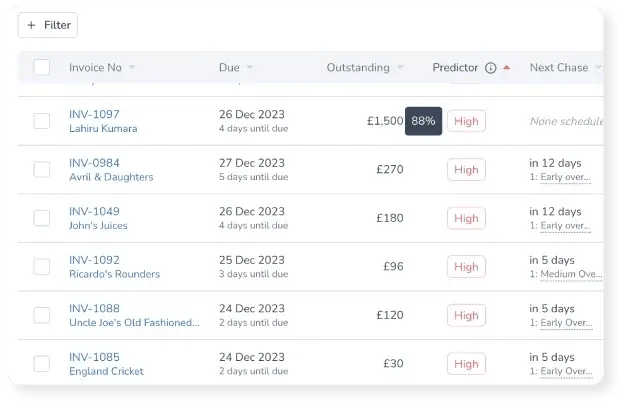
Together, these continuously find what's overdue today, and know who reliably pays late, without the Excel reconciliation QuickBooks has no native report to support. A customer drifting from 10 days late to 35 shows up as a risk shift before their next invoice is even overdue.
Acting on the receivable: what actually moves the forecast
Chaser's receivables forecast draws on that same live collections data, including the QuickBooks sync, to power the incoming-cash line. Because Chaser is also the system chasing the invoice, the forecast isn't a static snapshot. It tightens as the chasing activity itself changes when customers actually pay.
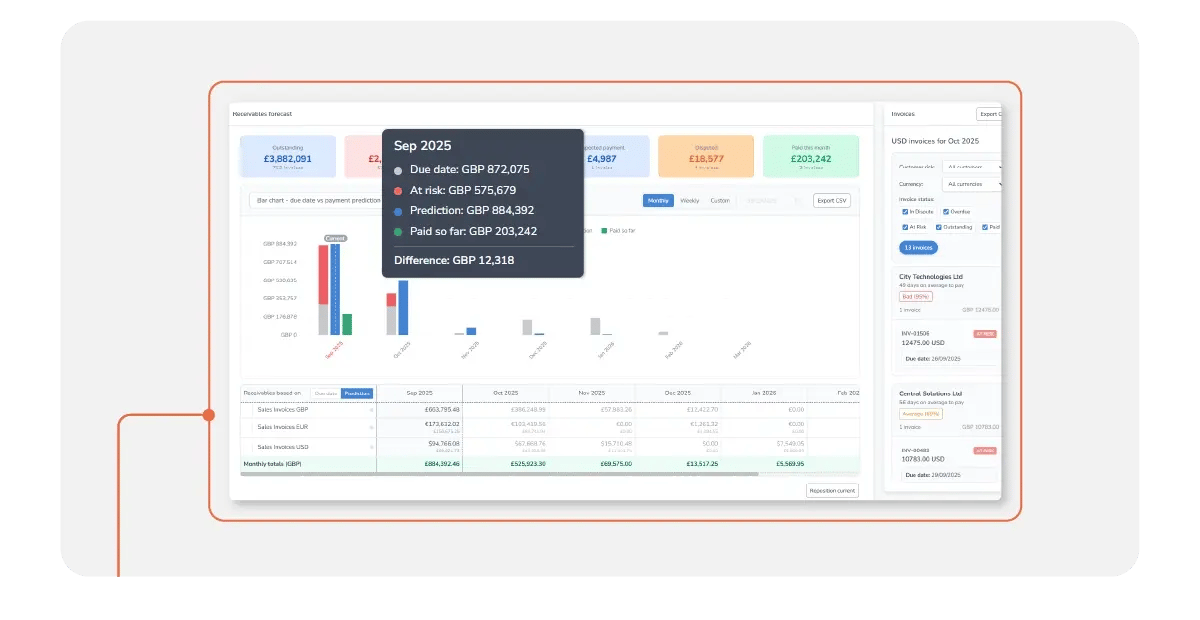
The manual method means reconstructing payment behavior by hand from a report QuickBooks doesn't provide, then correcting the forecast to reflect it. Chaser already holds this data as the system running collections, and corrects the assumption while working the invoice at the same time.
FHC, an accounting firm using Chaser, saw its client Docuflow get paid 54 days faster on average: a credit-control outcome, evidence the mechanism tightens payment timing rather than only describing it, not a claim about the forecasting feature in isolation.
Speak to Chaser’s forecasting experts to see what the receivables forecast can show for your own QuickBooks numbers today, and where cash flow forecasting fits as QuickBooks support expands.

Common questions about QuickBook’s cash flow forecast